
Typing Japanese Messages: Choose the Right Kana-to-Kanji Conversion
Published on
Typing a Japanese message correctly often breaks down at one exact point: the kana comes out right, but the kanji your keyboard selects says something else, so you need to check the candidate before you tap send. The real sticking point usually is not knowing how to say the sentence; it is that one kana reading can convert into several different words, and only you know which one the sentence actually needs.
Once you have a message you have checked, HelloTalk gives you a place to send it to someone willing to reply, so you can ask about its content and see what those words conveyed to a reader.
Where the Breakdown Happens Between Knowing a Sentence and Typing It Correctly
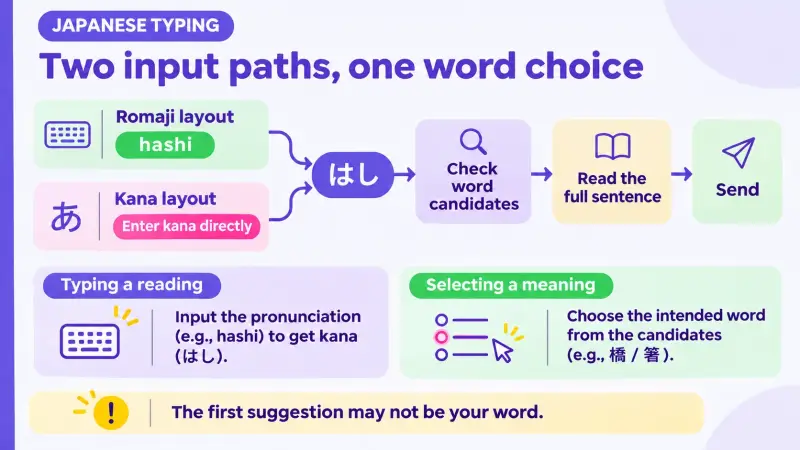
Knowing how to say a sentence in Japanese and getting your phone to produce it are two different skills. If you use a Romaji keyboard layout, you type roman letters first and the keyboard converts them into kana; if you use a Kana layout instead, you enter kana directly. Either way, the keyboard then offers kanji candidates for that kana, and you pick one before sending.
A single kana reading can match more than one word, so checking the candidate list is part of writing the message, not an optional extra step. Kana is not limited to marking pronunciation either; whole words and grammatical elements are written in kana and carry meaning on their own, alongside the roles kanji and katakana play. Three Writing Systems, Three Jobs: How Japanese Resources Divide the Work covers how the three scripts divide that work in more detail. The table below marks what happens at each stage of the typing pipeline and what is worth checking there.
| Stage | What happens | What to check |
|---|---|---|
| Entering the reading | You type romaji or kana depending on your keyboard layout | Confirm the kana shown matches the sound you intended |
| Kana conversion (Romaji layout only) | Your keyboard turns romaji into hiragana | Check the hiragana before moving to candidates |
| Candidate selection | The keyboard offers kanji matching that kana reading | Read the candidate before tapping, since several words can share one reading |
| Send | You confirm and send the message | Read the full sentence once more before sending |
The next sections focus on candidate selection, since that is where one reading can lead to more than one word. They work through that step on iPhone, then show how to choose correctly when two real words share one kana input.
Adding and Switching to a Japanese Keyboard on iPhone
Before you can see any candidates, the Japanese keyboard has to be added. On iPhone, open Settings, then General, then Keyboard, then Keyboards, then Add New Keyboard, and choose Japanese. Apple's keyboard supports both Romaji and Kana layouts for Japanese, so you choose which input style to type with when you add it.
Once the keyboard is added, switch to it while typing by pressing and holding the globe or keyboard switch key, then choosing Japanese from the list that appears. The same control switches between any keyboards you have added, not just Japanese.
If you are weighing which apps, textbooks, or spaced-repetition tools are worth your time for learning Japanese overall, Japanese Learning Tools Compared: Apps, Textbooks, and SRS compares that wider set of resources; it is not about input-method setup specifically.
On Android, Gboard lets you add Japanese through its own language settings menu, and you can switch keyboards by pressing and holding the space bar. Its candidate screen is a separate setup from iPhone's, so the next section focuses on what iPhone shows.
Reading the Candidate List Before You Tap
Once you start typing kana on iPhone, a row of suggested words appears above the keyboard. You can tap a candidate to insert it into your message, or check for more available candidates when the kana could mean several things; interface labels and layouts can vary across iOS versions, but a row of options above the keyboard is the general pattern to expect.
A ranked suggestion is not a guarantee of the word you meant. Your keyboard can use context to order the candidates it shows, but the top position is still only one match for that kana reading. Reading the row before tapping, rather than tapping the moment any kanji appears, is a direct way to catch a candidate that does not say what you intended. The next section shows this with a kana input that commonly raises exactly this question.
Choosing Between Words That Share the Same Kana Input (はし: 橋 vs 箸)
はし is one of the clearer examples of a reading that maps to unrelated words. Typing はし can convert to 橋, meaning bridge, or to 箸, meaning chopsticks. Typing はし can convert to different words with the same kana spelling, including 橋 and 箸, so the correct kanji depends on which word the sentence actually needs, not on which candidate appears first. The two words may also differ in pitch accent when spoken; that is a separate listening and pronunciation question, and the candidate list on your keyboard does not resolve it.
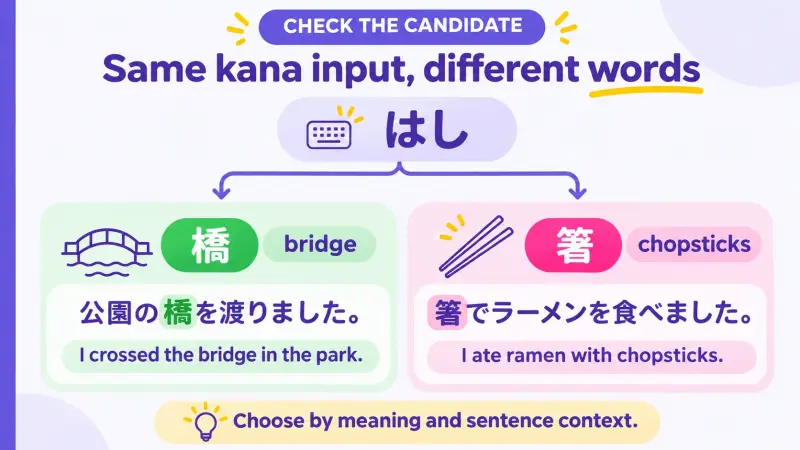
| Kana input | Kanji | Meaning | Example sentence |
|---|---|---|---|
| はし | 橋 | bridge | 公園の橋を渡りました。(I crossed the bridge in the park.) |
| はし | 箸 | chopsticks | 箸でラーメンを食べました。(I ate ramen with chopsticks.) |
The surrounding words, not the isolated character, tell you which candidate fits. 渡る (to cross) pairs naturally with 橋; it does not pair with 箸, since chopsticks are not something you cross. If the wrong candidate slips through, the sentence can read as confusing rather than simply incorrect, which is often how the mistake gets noticed.
As one example, you could send a short original message such as 今日、公園の橋を渡りました。最近、橋を渡りましたか。(Today I crossed the bridge in the park. Have you crossed a bridge recently?) to someone you already exchange messages with on HelloTalk.
Their answer is about their own experience rather than a repeat of your sentence. A reply that references crossing a bridge is a clue that the word came through as intended, not proof the candidate was correct; a confused reply makes the chosen character worth checking, though grammar or context around it could also be the cause. A partner's reply can show whether a specific word landed as intended, but it does not certify that every other word in the message is correct.
Confirming Your Message Means What You Intended Before You Send It
Before sending, run a short check in this order: what object or idea you intended, which word you chose for it, and whether the surrounding sentence actually makes sense with that word. For はし, that means confirming whether you meant 橋 or 箸 before anything else, then reading the full sentence once to see if the choice fits what comes before and after it.
This self-check happens before you send, using only the words already on the screen, and does not require anyone else's reply. Once the message is sent, a partner's response can still tell you something about how the words landed, as described above, but that comes after the fact and is a separate, optional step from the check itself.
Your First Japanese Self-Introduction: Practice the Next Two Turns picks up from a checked message and works through what a short continued exchange can look like.
FAQ
How do I add a Japanese keyboard on iPhone?
Open Settings, then General, then Keyboard, then Keyboards, then Add New Keyboard, and select Japanese. You can choose a Romaji or Kana layout when you add it.
How do I switch to the Japanese keyboard while typing?
Press and hold the globe or keyboard switch key, then choose Japanese from the list. The same key switches between any other keyboards you have installed.
What is the difference between a Romaji and Kana keyboard layout?
On a Romaji layout you type roman letters, and the keyboard converts them into kana before offering kanji candidates. On a Kana layout you enter kana directly, then candidates appear the same way.
Why did my keyboard suggest a kanji I did not mean to type?
Many kana readings match more than one word. Your keyboard can rank candidates using context, but the top suggestion is still one possible match, not a guarantee of the word you meant.
How do I tell 橋 and 箸 apart when typing はし?
Check the words around it rather than the character alone. 橋 pairs with words like 渡る (cross), while 箸 pairs with eating, since one means bridge and the other means chopsticks.
Can I type Japanese messages on Android as well?
Yes. Gboard lets you add Japanese through its own language settings and switch keyboards by pressing and holding the space bar. Its candidate screen is a separate setup from iPhone's.
Does a reply from a HelloTalk partner confirm my message is grammatically correct?
Not on its own. A reply can show whether a specific word came through to that reader, but it does not certify every word or grammar point in the message.
Is checking candidates necessary only for unusual words?
No. Many common readings match more than one word, so checking the candidate row is worth doing as a habit, not only when a sentence looks unusual.
Checking the candidate screen before you send is a matter of reading what is already there, not a different approach to Japanese. When you have a message ready, send it to a partner on HelloTalk and ask what it meant to them.